
How to Find the UDID of an iPhone® or iPad®
1. Open iTunes® on your computer:

Note: If you do not want the iPhone or iPad to sync with the computer, then before making the connection, disable syncing in the computer’s iTunes Preferences: Click on Devices, then check the box, “Prevent iPods, iPhones, and iPads from syncing automatically.”
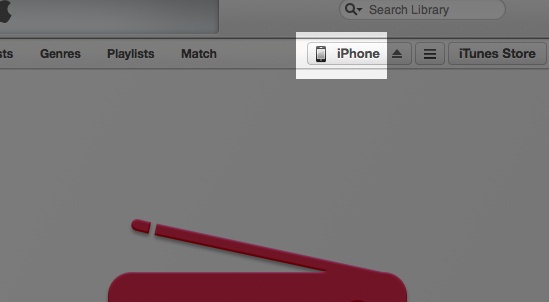
2. Connect your iPhone or iPad with its USB cord to the computer, then click on the iPhone or iPad button that appears in iTunes:
3. In the window that appears, click on the iPhone’s or iPad’s Serial Number …
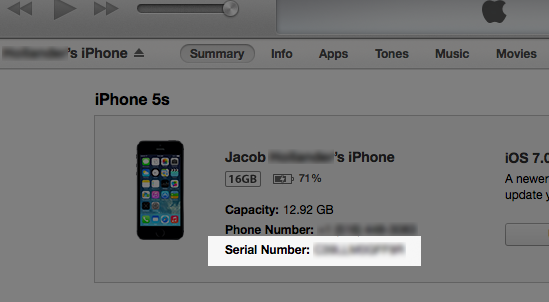
… to reveal its UDID number:
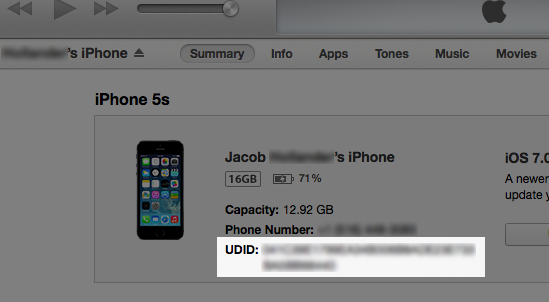
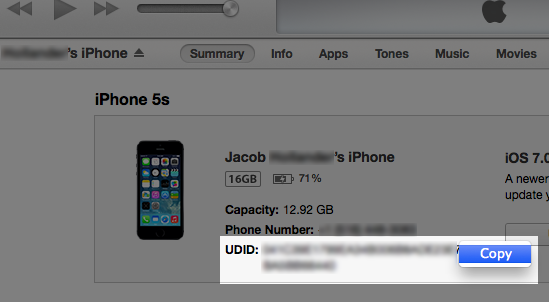
4. Right-click on the UDID number, then click on Copy:
5. Paste the UDID number in an e-mail and send it to it@bssnet.com.
Alternately, you may find the UDID of your device without using iTunes, as by one of these methods.